Free & open source · macOS 13+

Screen time that
ends on time.

LockApp is a tiny Mac app that ends the daily “just 5 more minutes!” battle. Set how long your child can use the computer, and when time is up the screen locks or a mandatory break begins — automatically.

  • Apple Silicon & Intel
  • No accounts
  • 100% free
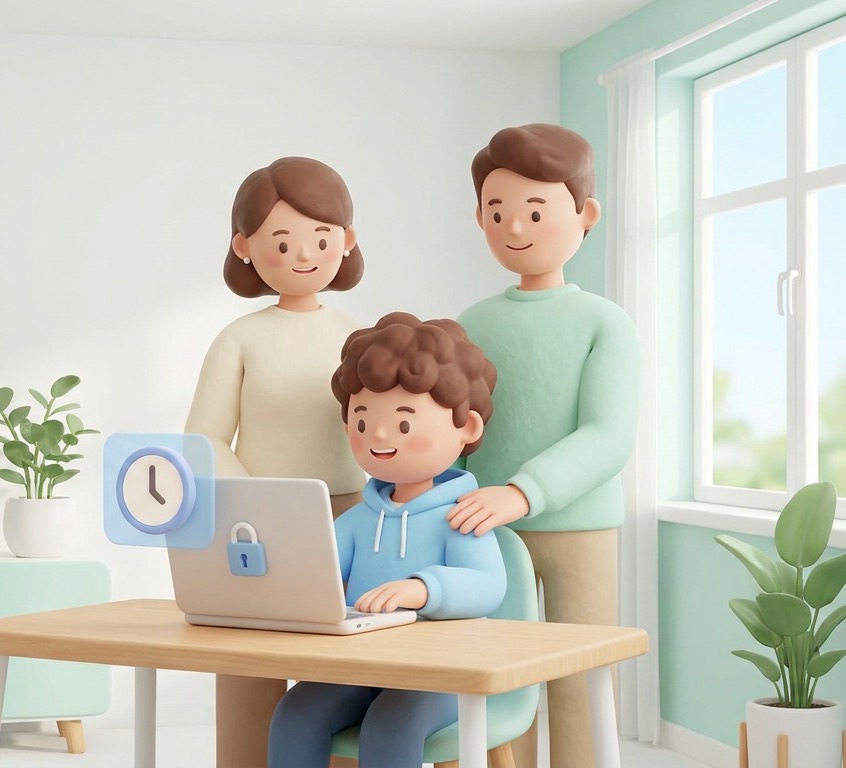
A child at a laptop with parents standing behind, smiling — the laptop shows a LockApp break screen
Time left 00:14:59
Break timeBack in 1h 30m

“Turn it off now.” … “5 more minutes!” … “It's been 15 minutes.” … “Just 1 more minute, please!”

Every parent knows these little daily battles. LockApp was born from one of them — a dad who wanted the computer to keep time, so he didn't have to.

VG
Vagelis GrassosCreator of LockApp & parent

The computer keeps time — not you

No more nagging or negotiating. The rule is the rule, and it's the same every day.

No separate kid account

Works on your user account. No family links, no cloud sign-ups, no complex parental-control dashboards.

Healthy habits, for grown-ups too

A visible countdown in the menu bar helps everyone — adults included — remember to take a break.

Features

Small app. Does one job. Does it well.

Use the computer for X hours, then a mandatory break of Y hours. That's it.

Two modes: Lock or Break

Lock logs out to the macOS login screen. Break shows a full-screen break that stays until the break is over.

Flexible time limits

Set usage and break time in 15-minute steps — e.g. 2.5 hours of use, then a 1.5-hour break.

Countdown in the menu bar

Runs quietly at the top-right of the screen, no Dock icon. Everyone can see how much time is left.

Master password

Settings, resetting the timer, changing the password and quitting all require the parent's password.

Bypass PIN

Need to end a break early? A separate PIN lets a parent unlock the break screen on the spot.

Starts with your Mac

Launches automatically at login and survives Force Quit — so it can't just be closed away.

Exits full-screen apps

Games and videos in full screen are pulled out when time is up, so the break actually happens.

Featherweight

A single Swift file. Native, tiny, no background services, no tracking, no internet needed.

How it works

Up and running in under 5 minutes

  1. 1

    Download & install

    Download LockApp.zip, unzip it and move LockApp.app to your Applications folder.

  2. 2

    Open it

    The app isn't signed, so macOS may warn you. Go to System Settings → Privacy & Security and click Open Anyway.

  3. 3

    Set a master password

    On first launch, choose the parent password that protects settings and quitting.

  4. 4

    Choose the rules & press Start

    Pick Lock or Break mode, usage time, break time and an optional PIN. Then press Start.

Recommended Mac settings

AccessibilityPrivacy & Security → Accessibility — lets LockApp exit full-screen games and videos.
Login ItemsGeneral → Login Items — so LockApp starts automatically when the Mac opens.
Require password immediatelyLock Screen → require password after screen saver / display off → Immediately.
User passwordUsers & Groups — without a user password, the login screen won't stop anyone.
Honest by design

Simple, not a fortress

LockApp isn't meant to be unbreakable — a tech-savvy teenager could find a way around it. It's an easy, simple and very lightweight solution for our little angels, and a gentle, automatic reminder of the hours spent in front of the screen.

If you need enterprise-grade restrictions, macOS Screen Time is the better fit. If you want something that just works, without accounts — this is it.

Open source

Free forever. Code is open.

The full source is on GitHub. Read it, build it yourself with ./build.sh, or change it however you like.

vgrassos/lockappgithub.com/vgrassos/lockapp
$ git clone https://github.com/vgrassos/lockapp
$ cd lockapp && ./build.sh
FAQ

Questions parents ask

Which Macs does it support?

Any Mac running macOS 13 (Ventura) or newer — both Apple Silicon and Intel.

Does my child need their own user account?

No. LockApp works on whichever account is in use — including your own. That's the whole point: no extra accounts, no family links.

macOS says the app can't be opened. Is it safe?

The app isn't signed with a paid Apple developer certificate, so macOS shows a warning. Open it from the Applications folder, then go to System Settings → Privacy & Security and click Open Anyway. The code is fully open on GitHub, so anyone can review it.

What's the difference between Lock and Break mode?

Lock sends the Mac to the login screen when time is up. Break shows a full-screen break that can't be dismissed until the break time is over (or a parent enters the bypass PIN).

Tip: test the PIN first!

Always set a bypass PIN — if you lock yourself out while testing, you'll be glad you did.

Does it collect any data?

No. LockApp runs entirely on your Mac. No analytics, no accounts, no internet connection required.

How much does it cost?

Nothing. LockApp is free and open source.

LockApp

Fewer battles. More balance.

Download LockApp and let the Mac keep time — so you don't have to.

Download for Mac — free macOS 13+ · Apple Silicon & Intel · All releases